Free SQL Server Training Videos
Over the last year, I have published many videos to YouTube with Free SQL Server Training. You can find these on my YouTube Channel at… Read More »Free SQL Server Training Videos
Over the last year, I have published many videos to YouTube with Free SQL Server Training. You can find these on my YouTube Channel at… Read More »Free SQL Server Training Videos
If you have more memory than your database and applications on the SQL Server will ever use than this is not a problem, but when you run into memory constraints this setting is much more important.
SQL Server attempts to use as much memory as possible, and when there is no more memory available, SQL Server will use much more I/O due to data and index pages having to be read from disk more often. This works great for SQL Server, but what happens is that SQL Server will take almost all the memory leaving very little for the operating system processes or other applications that are running.
The default for this setting is 2147483647 which is probably more memory that your server has, which effectively tells SQL Server to take as much memory as it wants to.
In SQL Server there is a special connection that can be used to connect to the database, the remote Dedicated Admin Connection or (DAC). This… Read More »SQL Server – Dedicated Admin Connection (remote DAC)
Here are the slides for my presentation at SQL Saturday, at Las Vegas today. Download the presentation here CorruptionPresentation.pdf
As part of the Database Health Monitor version 2.1 release there were many new report includes, one of those was the backup status report. A… Read More »Featured Report: Backup Status Report
I have just released version 2.1 of Database Health Monitor, this release involved 2 months of development since version 2.0 was released in July. People… Read More »Database Health Monitor version 2.1 Just Released
This Saturday, September 12th, 2015 I will be presenting at SQL Saturday Las Vegas. My presentation is on Database Corruption, here are the details.
Duration: 60 minutes
Track: Enterprise Database Administration & Deployment
You are working along month after month with no problems in your database. Suddenly someone reports that their query won’t run. They get an error stating “SQL Server detected a logical consistency-based I/O error“, or something even scarier. Do you know what to do now? We will walk through 3 or 4 actual corrupt databases exploring ways to go about finding and fixing the corruption. More importantly we will explore how to prevent further data loss at the time corruption occurs. Learn what things you should do to protect yourself when corruption strikes. Learn what to avoid that will make things worse. You will leave with a checklist of steps to take when you encounter corruption. By the end of this session you will be ready to take on corruption, one database at a time.
The presentation is scheduled for 11:00 am to Noon in room 2767 at the College of Southern Nevada campus in Vegas.
I was looking through my SQL Server error logs to confirm that CheckDB was being run as I had scheduled based on my previous post to run DBCC CheckDB on all databases. I wanted to confirm that there was no corruption, and that all of the databases had been checked, and not had been missed. Going through this I noticed the logging of all of my databases, but one extra database showed up, the mssqlsystemresource database.
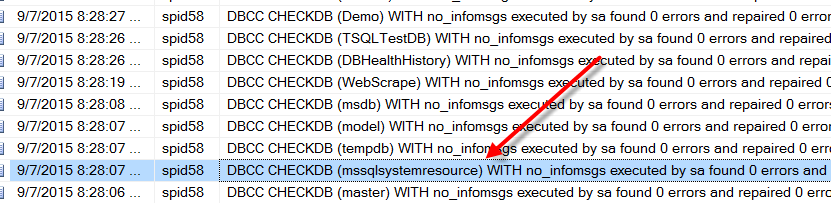
Now the mssqlsystemresource database is an internal SQL Server database that is used by SQL Server, it also gets replaced by SQL Server when you do an upgrade of your SQL Server database. It is hidden so that people don’t have access to it, and it doesn’t show up when you run the undocumented sp_msforeachdb it doesn’t include the mssqlsystemresource database. Additionally the sys.databases view doesn’t include the mssqlsystemresource database.
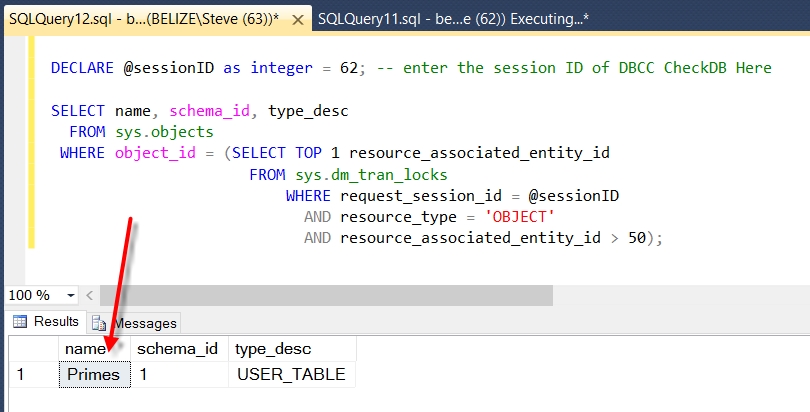
So you are checking your database with DBCC CheckDB and of course if you are like me you use the WITH NO_INFOMSGS parameter. But it turns out that CheckDB is taking longer to run that you expected, and you want to check and see what table is currently being checked.
Here is a quick SQL Script that I use to find the current table that is being checked by DBCC CheckDB
use [your database]; go -- use this to find the session id of DBCC CheckDB SELECT session_id, start_time, command, percent_complete, total_elapsed_time, estimated_completion_time, database_id, user_id, last_wait_type FROM sys.dm_exec_requests CROSS APPLY sys.dm_exec_sql_text(sql_handle) WHERE command like '%DBCC%'; DECLARE @sessionID as integer = 53; -- enter the session ID of DBCC CheckDB Here SELECT name, schema_id, type_desc FROM sys.objects WHERE object_id = (SELECT TOP 1 resource_associated_entity_id FROM sys.dm_tran_locks WHERE request_session_id = @sessionID AND resource_type = 'OBJECT' AND resource_associated_entity_id <> 50);
Its not always quick and easy in SQL Server to get a full list of the jobs that have been run, when they were run… Read More »SQL Server Script to Display Job History